Group training on site

Director Training Basic

In one day, your team learns to work independently with your GetyourStudio studio, from operating the cameras to recording and streaming a complete broadcast. StudioAssist runs through the whole day.
  • 1 dayhands-on in your own studio
  • Max. 4people
  • Certificateon completion

Programme

What the day looks like

Suitable for a team that has just started using a new studio, and for existing clients who want to onboard new colleagues on a studio that is already up and running.

Morning

Equipment and StudioAssist

Introduction and goal of the day

We discuss your questions and the types of recordings you will be making with the studio, so the training matches your needs.

The equipment in the studio

From camera to microphone.

  • How the Canon PTZ cameras work
  • The best camera positions for each type of recording
  • The teleprompter (if available)
  • Which lights are installed, what they do and how to position them
  • The different microphones and how to use them correctly

The control room

How everything comes together in the control room.

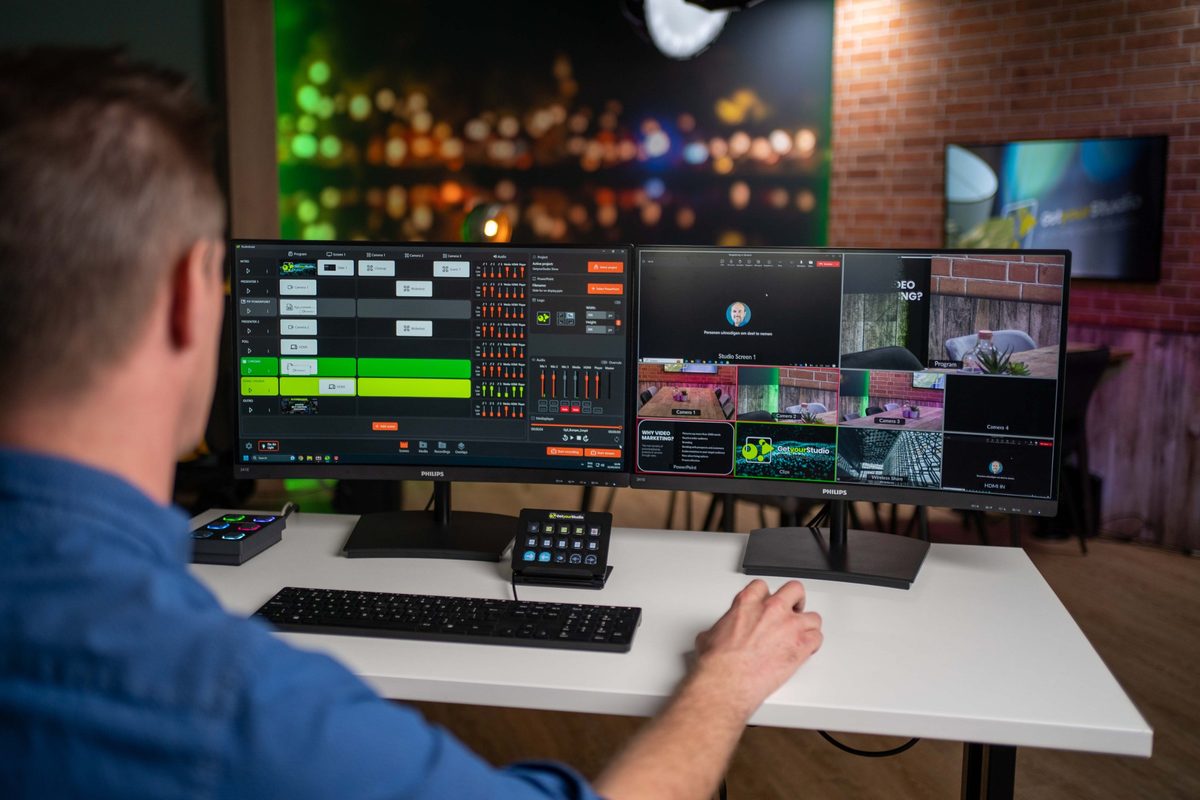
  • What the Studio-in-a-Box is and how StudioAssist connects all the equipment
  • The multiviewer: all camera feeds and sources in one overview
  • The One-touch control panel for switching with physical buttons
  • Controlling cameras via the web interface or the optional PTZ controller
  • Using the PowerPoint clicker
  • Reading out the recorder and the SD card
  • Controlling the lights via the switch panel (if available)

StudioAssist, the basics

The main part of the morning.

  • Finding your way around StudioAssist
  • Setting up and switching projects, and loading a PowerPoint
  • Creating scenes with the wizard: fullscreen, PIP and green screen
  • Creating compositions, Basic and Advanced
  • Showing a phone screen via Wireless Share
  • Connecting a laptop via HDMI
  • Bringing a guest speaker into the broadcast via Teams or Zoom
  • Making a recording and finding it via the Media and Recordings tabs
  • The audio faders: which microphone belongs to which fader
  • Streaming to, for example, Teams, Zoom or Vimeo

Overlays and chroma key

  • Choosing a lower third template together and learning to operate it
  • Using chroma key scenes and controlling the background from StudioAssist
Lunch break
Afternoon

Hands-on practice

Directing a broadcast yourself

The trainer shows you how to build a script (rundown): which transitions to make via a scene and which via the One-touch control panel. Then you make a real recording in two groups, one half in the studio and the other in the control room, and swap roles.

  • Setting camera presets
  • Switching between audio sources
  • Balancing microphone levels
  • Adding extra scenes, such as PIP or green screen
  • Starting the recording

Checking the studio, starting up and shutting down

Are the cameras and lighting set up correctly and consistently, are there no shadows, are the cables neatly tucked away? Then the start-up and shut-down procedure, from the switches to StudioAssist.

We tailor the programme to the set-up of your studio and your requirements.

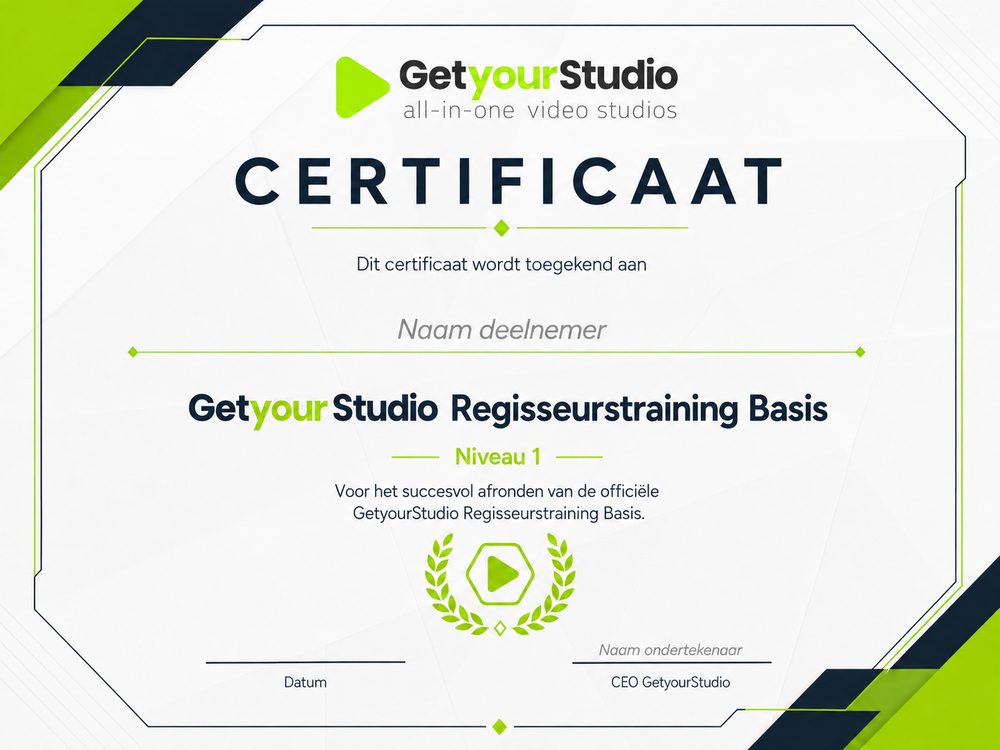
GetyourStudio certificate for the Director Training Basic

Practical information

After this day, the team can start up, operate and shut down the studio independently.

Times
9.30 am to 4.30 pm at the latest, lunch break from 12.30 to 1.15 pm
Location
In your own studio
Group size
Up to 4 people
For whom
Anyone who is going to work with the studio for the first time, or wants a refresher
Included
Official GetyourStudio Director Training Basic certificate
Cost
Tailored quotation

Want to schedule the Director Training Basic for your team?

Get in touch and we'll tailor the programme to your studio.

Team already familiar with the basics? View the Director Training Advanced

Request this training

FAQ

Frequently asked questions

About the Director Training Basic.